To update Product Settings, go to Settings > Products > Product Settings. Select Edit to make changes.
Product Settings
Set some Defaults for New Products, toggle on or off as preferred.

Settings available for new products are: (defaults indicated in brackets).
- Enable stock level tracking on new products (ON): determine the default setting for tracking of stock quantities for newly created products. Products can be individually managed within the Product Details tab.
- Allow sales discounts (OFF): determines whether new products are eligible for sales discounts.
- Allow discount matrix pricing (OFF): This sets whether or not new products have the Discount Matrix pricing function enabled. Products that have been previously created will not be impacted by this setting. When enabled, discounts can be applied to Products on a Customer Quote or Invoice based on a discount matrix set in a product group.
- Include untracked in label printing (OFF): Determines whether products without stock tracking enabled are included when printing product labels.
- Include in website: Used when a website is getting product information from Infusion via an API.
Set some Required fields for New or Edited Products, toggle on or off as preferred.

When adding a new product or updating an existing one, the user can choose which of the following fields should be required. By default, all options are turned OFF
- Type
- Group
- Sub Group
- primary Barcode
- Sales Unit
For products that are being imported, if a product group isn’t specified, then the New Product settings for stock tracking will apply to those imported products.
When new products are created and assigned to a product group, if the product group is set to enable stock level tracking new products will use this setting. If the product group isn’t set to use stock tracking, then the New Product settings will apply.
To enable Discount Matrix pricing on an existing customer, see General Settings within a product.
Set Automatic product numbering to On or Off as required.
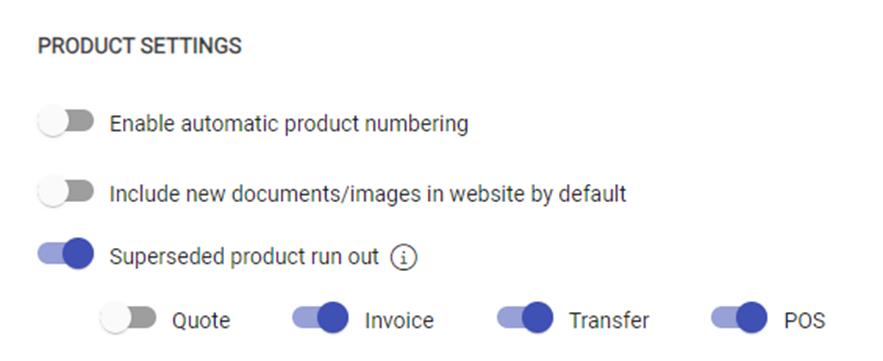
- ON - the next product created will use the value in the Next Product Number field. This is a numeric field that is editable and can be adjusted if required. Once used this number will increment by one. When set to On, product numbers / codes cannot be manually created.
- OFF - the product code must be manually entered when automatic numbering is turned off.
Enabling Superseded product run out, allows for products that have been superseded to sell out first, before the superseding product can be sold.
When enabled, there are four options, all of which allow for the same core function on different types of transactions. If a user sells a product that has been superseded and that product still has available stock, they will not be prompted to sell the new product until there is no available stock of the existing product.
Pricing
Pricing setting allow users to set special pricing based on purchase quantity or promotional periods.

- Enable Quantity Break Pricing: Allows different prices to be set dependant on the number of items of an individual product purchased.
- Enable Promotional Pricing: Allows a temporary price to be put in place for a promotional period.
Costs
The Costs settings define how product, supplier, and serial number costs are calculated, updated, and managed throughout purchasing and inventory transactions

- Costing Based On: Determines which cost is used when pricing is calculated, either Average or Latest cost. Average cost is the default setting.
-
Product Cost Update Policy (When Receiving Products): Defines when to update the Latest and Average costs when products are received. Users can choose from the options below.
- Do not update costs: No change is made to either Latest or Average costs. This can be done manually from the Product Pricing tab of a Product.
- Update latest and average costs: Both latest and average costs are automatically updated.
- Update only average costs: Latest costs must be manually managed.
-
Supplier Cost Update Policy (When receiving Products): Defines whether and how the supplier cost on the product should be updated when receiving product, options include
- Do not update costs: No updates will be made to the supplier cost.
- Update latest: Updates the existing supplier cost on product using the latest supplier cost
-
Create/Update Supplier Costs (When Ordering): Defines whether supplier costs should be created or updated when ordering a product.
- Do not update costs: No change is made to Supplier cost.
- Update latest and average costs: Both latest and average costs are automatically updated.
- Update only average costs: Latest costs must be manually managed.
-
Override Supplier Cost (When ordering): Defines whether users are permitted to change the default Supplier Cost Update Policy defined above when ordering a product.
- If Override Supplier Cost (When Ordering)= False, the system records the value defined in the Product Settings.
- If Override Supplier Cost (When Ordering)= True, the system records the value selected by the user at the time of ordering.
- Track costs by serial number: when enabled, all product transactions involving serial number tracking for sales and purchases will use the serial number cost, overriding the latest or average cost.
Stock Levels
Use the options available to set stock management and notification options for products.
-
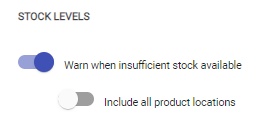
Warn when insufficient stock available - when active, an alert shows on an invoice to indicate that there are insufficient stock levels.
- Include all product locations - becomes available when the insufficient stock warning is active. When selected, stock level alerts are based on quantities in all product locations. When deselected, alerts are based only on the current product location.
Transfer
To enable Stock in Transit, open the Settings module and navigate to Product Settings. Choose Edit and locate the Transfer section.
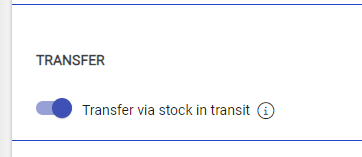
Enabling the option Transfer via stock in transit activates the function within Infusion. This option can be disabled to switch off the ability to transfer stock in transit
Transfer via stock in transit can only be disabled if there are no products currently in an In Transit state.
Stocktake
You can choose to 'Subtract allocated quantities when calculating expected quantity for stocktake lines'. This option is on by default for new and migrated datasets.
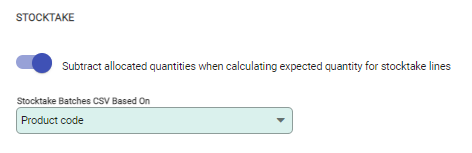
- When this option is selected, the stocktake will not expect the allocated quantities to be included in the counted figures, i.e. products on pending invoices have been removed (packed) and are not on the shelf to be counted.
- If the option is not selected, the stocktake expects the allocated quantities to be included in the counted figures, i.e. products on pending invoices have not been removed and are on the shelf to be counted.
You can also choose to export .CSV files that are based on Product code or Barcode.
Label Printing
Users can select what detail to print on a Product Label by enabling

- Price Level To Print : Select the price level to be printed on the product label.
-
Print Receiving Labels based on: Select how receiving labels should be printed, based on one of the following options:
- Number of Selling Units
- Number of Purchasing units
- Fixed Quantity
- Quantity per Selling Unit
- Quantity per Purchasing Unit
- Do Not Print Labels
- Product Label: Select the product label layout to be used for printing.
- Receiving Product Label: Select the layout for printing receiving product labels
- Shelf Product Label: Select the layout for printing shelf product labels.