As with any third party integration, we recommend checking that the integration is importing transactions as expected. To start with, we recommend checking the balances against your actual bank account daily. Following this, complete the same check monthly and before closing off GST.
1. Manually import bank transactions
Before linking your bank account to Yodlee, complete a manual import of transactions up to the most recent close of business.
View our article on how to import and export transactions.
2. Create your Yodlee account
Go to Settings > Bank Feed Settings (in the Integration settings section) and then select Edit. Choose Yodlee as the Bank Feed Provider in the dropdown menu. Then select Save.
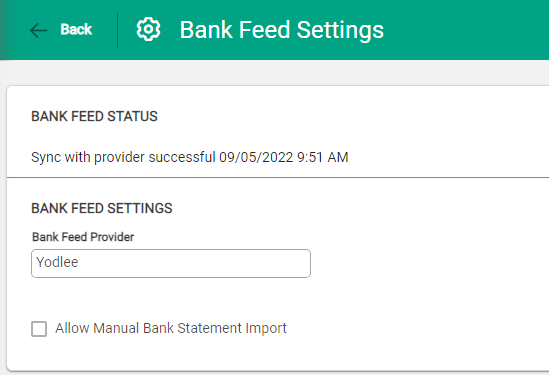
The 'Allow Manual Bank Statement Import' option is not required at this time. This allows importing bank statements if needed.
3. Link bank accounts with Yodlee
Select Link Bank Accounts with Yodlee in the taskbar.
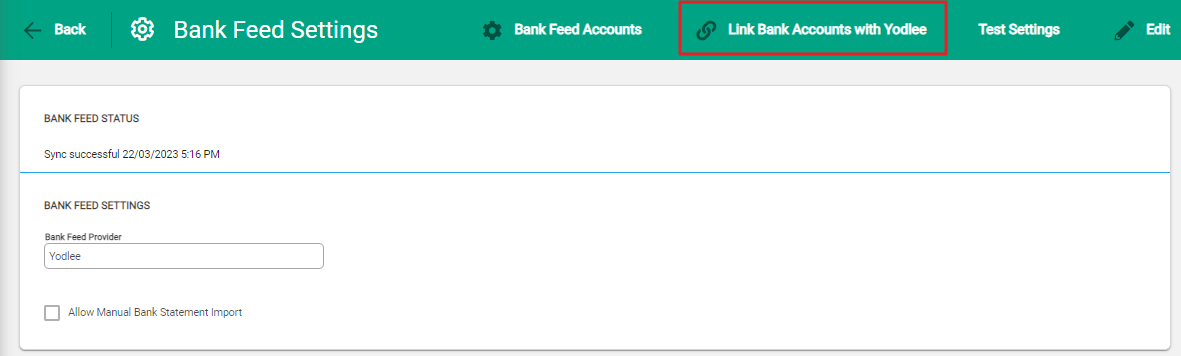
This will take you to Fastlink, where you can select your bank. Take care to select the correct option, and choose business or non-business banks as required.
If you are setting up bank feeds using Yodlee, please ensure that your financial institution supports Yodlee-powered bank feeds, if not we recommend you to manually import your bank statements to Infusion.
Please note that several banks in Australia and New Zealand are currently blocking or restricting Yodlee connections. This list is not exhaustive and may change at any time.
New Zealand – Major Banks
- ANZ
- ASB
- BNZ
- Westpac NZ
Australia – Major Banks
- Commonwealth Bank (CBA)
- Westpac
- ANZ
- NAB
For more information, please refer to - Bank Feeds - Known Issues
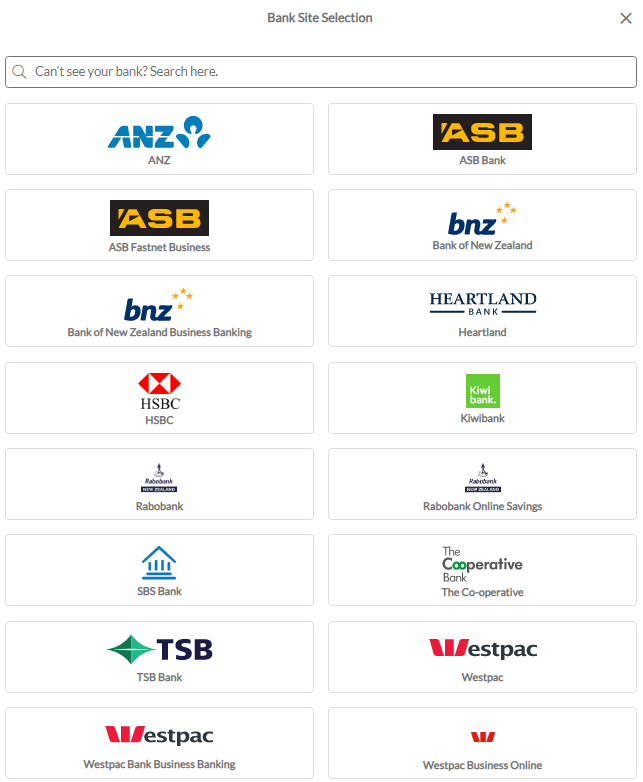
4. Login to your online banking
Depending on your bank, you will be offered to select or deselect bank accounts to link to Infusion. Select a bank account. Fastlink will take you to a login page which will look similar to your normal online banking page. Enter the details and any Multi Factor Authentication required, and then submit.
You will be returned to Infusion if this is successful. If you are not returned to Infusion, please contact support@infusionsoftware.co.nz.
5. Test Bank Feed settings
On the Bank Feeds Settings page, you will now see the Test Settings button in the taskbar. Select this button to ensure that the bank feed has been set up correctly.
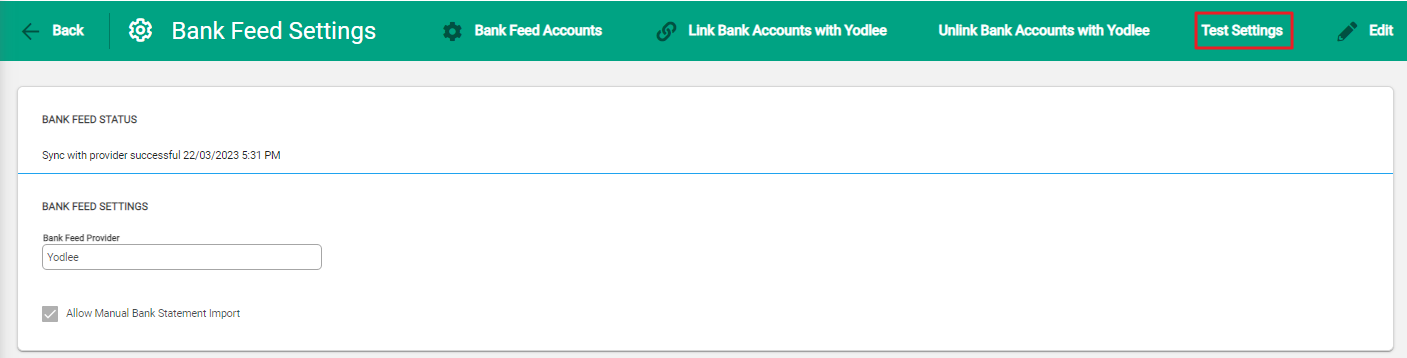
If the test passes, you will see a message confirming this.

If the test does not pass, contact support@infusionsoftware.co.nz.
6. Link Bank accounts to Bank Feed accounts
Go to Settings > Bank Feed Accounts (in the Integration settings section). You will see the available bank accounts that are linked to Yodlee. No financial data is available until it is linked to a General Ledger bank account.
Go to Financials. Select the GL Account for the bank account to be linked. Select Edit, and then select a Bank Feed Account from the available linked accounts.
Enter a Bank Feed Start Date.
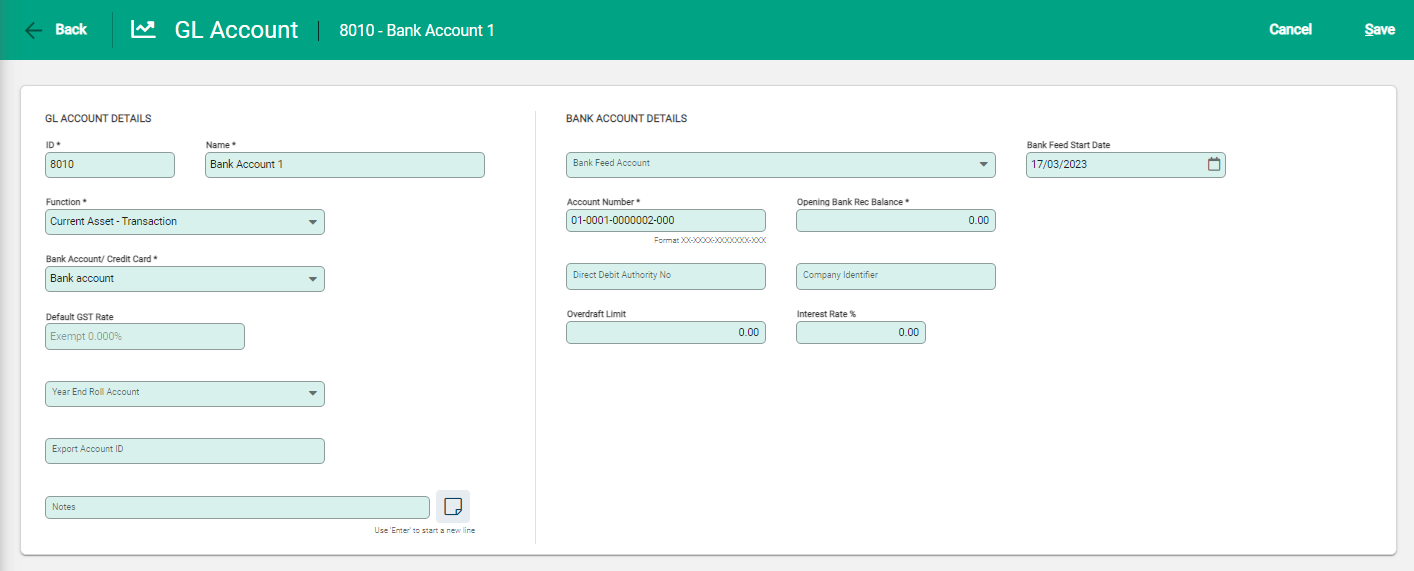
Return to Settings > Bank Feed Accounts to see the financial data for that bank account.

The transactions will import when you select Refresh Bank Feed.
Currently, refresh times mean that you may not see the transactions until 48 hours after they have been processed. If you do not see transactions after 48 hours, please contact support@infusionsoftware.co.nz.
BNZ Business Bank Feeds
BNZ Business accounts may require daily Multi Factor Authentication to refresh the feed.