A Purchase Order is used to request goods and services for purchase from a supplier. The Purchase Order is issued to the nominated supplier and includes items and quantities required, as well as the price.
Add a Purchase Order
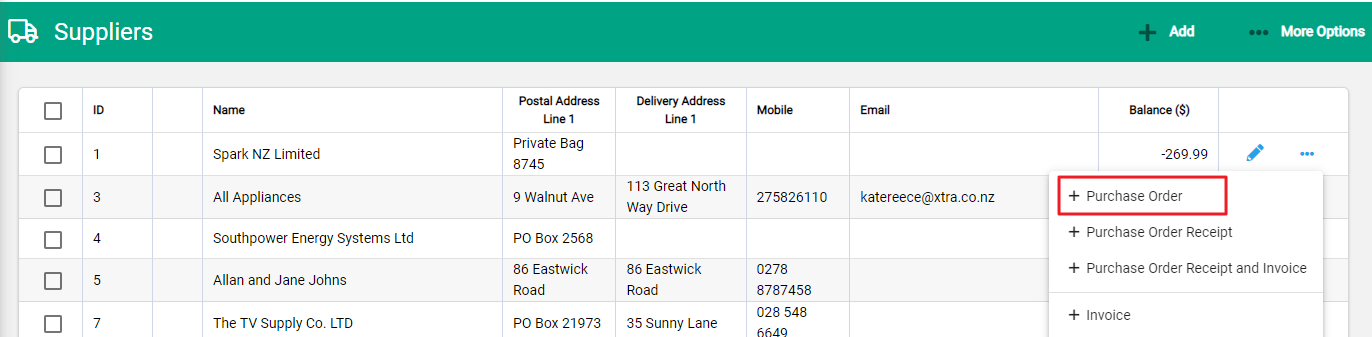
To add a purchase order, go to the Supplier module on the Main Menu and locate the supplier in the list. Select the Spill menu on the right of the supplier record to display the menu.

Select +Purchase Order to open a new purchase order for the supplier.
From the Purchase Order module Select +Add to create a new Purchase Order

Line Types that can be added to a Purchase Order

- Product: Select +Product to add items to the purchase order.
- GL Account: Select +GL Account to add items to the purchase order, Once the GL line appears enter the GL account and enter the unit cost
- Note: Select +Note to add items to the purchase order
- Separator: Select +Note to add items to the purchase order
- Pricebook: Select +Pricebook to add items to the purchase order, the Price bookl option will be enabled only if the supplier has a saved Pricebook
- Import Product line: Product lines can also be imported onto the purchase order by selecting Import Product Lines, rather than having to enter in every line. Have a look at our help article Importing Lines to a Product Order for more information